
IT Glossary for Kids: Tech Terms, STEM Concepts, and Learning Resources

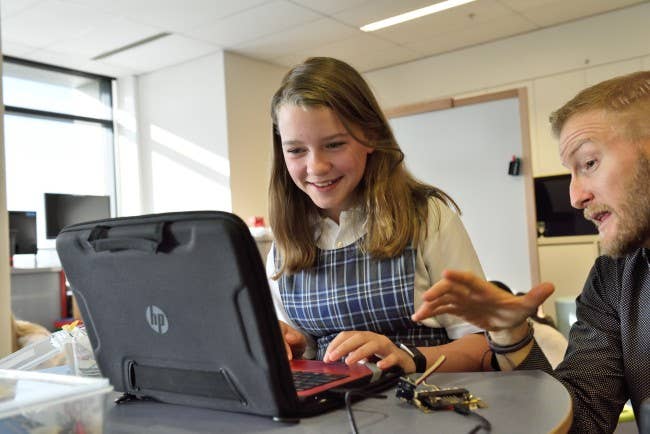
Technology is part of everyday life. Kids use computers to complete schoolwork, tablets to learn new skills, and the internet to explore ideas, play games, and connect with others. Learning the language of technology helps children become confident digital citizens and prepares them for success in school and beyond.
Many of the skills children develop while learning about technology also support STEM education. STEM—which stands for science, technology, engineering, and mathematics—helps students build creativity, critical thinking, communication, and problem-solving skills. These skills can open doors to exciting opportunities in fields like software engineering, cybersecurity, robotics, healthcare, artificial intelligence (AI), and data science.
According to the U.S. Bureau of Labor Statistics (BLS), STEM occupations are projected to grow faster than the average for all occupations over the next decade, with computer-related careers making up many of the largest STEM occupations. Early exposure to technology and STEM concepts can help students build confidence today while preparing them for future learning at the college and professional level.
Whether your child dreams of designing video games, building robots, becoming a scientist, or simply understanding the technology they use every day, learning these basic technology terms is a great place to start.
Technology Is Everywhere
Technology isn’t limited to computers anymore. It’s built into many of the tools kids use every day—from smartphones and tablets to smart speakers, streaming services, video games, and even cars.
Understanding how technology works doesn’t mean memorizing complicated computer science concepts. Instead, it starts with learning the basic vocabulary that helps explain how computer systems, the internet, software, and digital tools work together.
The glossary below introduces common information technology and STEM terms in a simple, beginner-friendly way to help students, parents, and educators build a strong foundation in digital literacy.

Tech Terms and STEM for Kids
Technology has changed the way people learn, communicate, create, and solve problems. Understanding common computer and internet terms helps kids become more confident using technology while building skills that support STEM activities and learning.
Basic Computer Terms
These words describe some of the most common actions you’ll perform while using a computer.
Caret
The caret is the blinking line that shows where the next letter, number, or symbol you type will appear.
Click
A click means pressing a mouse or trackpad button to select or interact with something on your screen.
Cursor
The cursor is the pointer you move around the screen with a mouse or touchpad. It lets you select text, open programs, and click buttons.
Double-Click
A double-click means quickly clicking the left mouse button twice to open a file, folder, or program.
Drag and Drop
Drag and drop means clicking and holding an item, moving it somewhere else on the screen, and then releasing the mouse button.
Input
Input is any information you send to a computer. Typing on a keyboard, clicking a mouse, tapping a touchscreen, or speaking into a microphone are all examples of input.
Left-Click and Right-Click
Most computer mice have two buttons. A left-click is used for common tasks like selecting or opening files. A right-click opens a menu with additional options.
Output
Output is any information a computer sends back to you. This can include words on a screen, printed pages, sounds from speakers, or images.
Coding Terms
Coding teaches computers how to perform tasks by giving them instructions.
Bit
A bit is the smallest unit of computer data. Every bit has one of two values: 0 or 1.
Bug
A bug is a mistake in a computer program that causes it to work incorrectly.
Code
Code is a set of instructions written in a programming language that tells a computer what to do.
Command
A command tells a computer to perform a specific task, such as opening a program or saving a file.
Debugging
Debugging is the process of finding and fixing bugs in a computer program.
Function
A function is a reusable section of code that performs a specific task.
If-Statement
An if-statement tells a computer to do something only when a certain condition is true.
Program
A program is software designed to perform a specific job, such as displaying a web browser, playing a game, or editing photos.
Logging In and Logging Out
Many websites, apps, and devices require users to sign in before they can use them.
Log In/Log Out
Logging in means signing in to an account or computer. Logging out securely ends your session.
Password
A password is a secret word, phrase, or combination of characters that helps protect your account.
Username
A username identifies your account when you sign in to a website, app, or computer.
Desktop Terms
When you turn on a computer, the desktop is usually the first screen you’ll see.
Desktop
The desktop is the main workspace on your computer. It often contains icons, folders, and shortcuts to your favorite programs.
Screen Saver
A screen saver appears after a computer has been inactive for a period of time. Modern screen savers are mostly decorative and can also help protect your privacy by hiding what’s on your screen.
Shortcut
A shortcut is an icon that quickly opens a file, folder, or program without moving the original item.
Taskbar
The taskbar is the bar along the edge of your screen that gives you quick access to open apps, pinned programs, and system settings.
Wallpaper
Wallpaper is the picture or image displayed behind the icons on your desktop. Many people personalize their computers by choosing their favorite wallpaper.
Data and Memory Terms
Computers store, organize, and move information constantly. These terms explain how computers save files, remember information, and run programs.
Data
Data is information stored on a computer or digital device. Data can include documents, photos, videos, music, games, apps, and much more.
Kilobyte (KB), Megabyte (MB), and Gigabyte (GB)
Computers measure storage space in bytes. A kilobyte (KB) stores a small amount of information, a megabyte (MB) stores much more, and a gigabyte (GB) stores even more. Photos, videos, games, and apps are often measured using these units.
Memory
Memory is the part of a computer that temporarily stores information while programs are running so the computer can work quickly and smoothly.
Operating System (OS)
An operating system is the main software that helps a computer, tablet, or smartphone run programs and perform everyday tasks. Popular operating systems include Windows, macOS, ChromeOS, Android, and iOS.
Packet
A packet is a small piece of data sent across a network or the internet. Websites, videos, emails, and messages are all delivered using many packets working together.
Software
Software is a collection of programs and instructions that tell a computer how to perform different tasks. Apps, games, web browsers, and operating systems are all examples of software.
Physical Computer Components
Computers are made up of many different pieces of hardware. Each part has an important job that helps the computer work properly.
CD/DVD or Blu-ray Drive
A CD/DVD or Blu-ray drive reads information stored on discs. Many newer computers no longer include disc drives because files are commonly downloaded or stored in the cloud.
Computer Case
The computer case protects the internal hardware components and helps keep everything organized inside the computer.
Hard Disk Drive (HDD)
A hard disk drive (HDD) stores files, programs, and your operating system even when the computer is turned off.
Laptop
A laptop is a portable computer with a built-in screen, keyboard, touchpad, and battery.
Motherboard
The motherboard is the main circuit board inside a computer. It connects the computer’s hardware so all the components can communicate with one another.
Personal Computer (PC)
A personal computer (PC) is a computer designed for one person’s everyday use, such as browsing the internet, completing homework, creating documents, or playing games.
Power Supply
The power supply converts electricity from a wall outlet into the type of power a computer’s internal parts need to operate.
Solid-State Drive (SSD)
A solid-state drive (SSD) stores files and programs like a hard drive but works much faster because it has no moving parts.
Sound Card
A sound card helps a computer play music, videos, games, and other audio through speakers or headphones.
Video Card (Graphics Card)
A video card, also called a graphics card, creates the images you see on your monitor.
Universal Serial Bus (USB)
The acronym “USB” refers to a common type of connection used to plug devices like keyboards, flash drives, printers, cameras, and game controllers into a computer.
Input and Output Devices
Input devices send information to a computer, while output devices allow the computer to communicate information back to you.
Keyboard
A keyboard lets you type letters, numbers, and symbols into a computer.
Monitor
A monitor is the computer’s display screen where you view programs, videos, games, websites, and documents.
Mouse
A mouse is a handheld device used to move the cursor and interact with items on the screen.
Printer
A printer creates paper copies of digital documents and images.
Scanner
A scanner copies printed documents or photos and saves them as digital files.
Speakers
Speakers play sound from a computer, including music, videos, games, and online meetings.
Internet Terms
The internet connects billions of devices around the world. These terms explain how people communicate, share information, and explore online.
Download
A download copies files, photos, videos, or apps from the internet onto your device.
Email is a way to send digital messages, documents, photos, and other files over the internet.
Internet
The internet is a worldwide network that connects computers and devices so people can communicate, learn, shop, play games, and find information.
Internet Service Provider (ISP)
An internet service provider (ISP) is a company that gives homes and businesses access to the internet.
Modem
A modem connects your home or school to your internet service provider.
Network
A network is a group of connected computers or devices that share information and resources.
Online
When a device is online, it is connected to the internet.
Server
A server is a computer that stores information and delivers it to other computers over a network.
Browsing
Browsing means exploring websites and information on the internet using a web browser.
Upload
An upload sends files, photos, videos, or other information from your device to the internet.
Wi-Fi
Wi-Fi is wireless technology that connects devices to the internet without using cables.
Navigating the Web
The internet contains billions of web pages. These terms explain how people find and move between them.
Bookmark
A bookmark saves a website so you can easily return to it later.
Browser
A web browser is a program used to visit websites. Popular browsers include Chrome, Safari, Firefox, and Microsoft Edge.
File Sharing
File sharing allows people to send or access digital files over the internet or a network.
Home Page
A home page is the main page of a website.
Hyperlink
A hyperlink, often called a link, is text, a button, or an image that opens another web page or file when you click it.
Instant Messaging
Instant messaging (IM) lets people send messages back and forth in real time using apps or websites.
Keyword
A keyword is a word or phrase you type into a search engine to help find information.
Search Engine
A search engine helps people find websites and information on the internet. Google, Bing, and Yahoo are examples of search engines.
Social Media
Social media includes websites and apps where people share messages, photos, videos, and ideas with others.
URL (Uniform Resource Locator)
A URL is the web address of a web page, such as www.wgu.edu.
Website
A website is a collection of related web pages under one web address.
World Wide Web (WWW)
The World Wide Web, often called the web, is the collection of web pages and websites you can access through the internet.
AI Terms
AI is becoming increasingly common in day-to-day life. Kids may already use AI in search engines, educational apps, voice assistants, and creative tools. Understanding these terms can help students use AI safely and responsibly.
AI
AI is technology that allows computers to perform tasks that usually require human intelligence, such as answering questions, recognizing images, translating languages, or creating content.
Algorithm
An algorithm is a step-by-step set of instructions that tells a computer how to solve a problem or complete a task.
Chatbot
A chatbot is a computer program that can have conversations with people by answering questions or providing information.
Generative AI
Generative AI is a type of artificial intelligence that can create new content, including stories, images, music, computer code, and videos.
Machine Learning
Machine learning is a type of AI that allows computers to learn from data and improve over time instead of being programmed for every situation.
Prompt
A prompt is the question or instruction you give an AI tool to tell it what you want it to do.
Voice Assistant
A voice assistant is an AI-powered tool, such as Siri, Alexa, or Google Assistant, that responds to spoken commands and questions.
Internet Safety Terms
Learning how to use technology also means learning how to use it safely. Understanding these internet safety terms can help kids become responsible digital citizens and make smart choices online.
Antivirus Software
Antivirus software helps protect computers and devices from viruses, malware, and other harmful software by finding and removing threats.
Cookie
A cookie is a small file that a website saves on your device to remember information such as your preferences or sign-in status.
Cyberbullying
Cyberbullying is using technology to hurt, threaten, embarrass, or harass another person. It can happen through text messages, social media, online games, or other digital platforms.
Cybercrime
Cybercrime is any illegal activity that uses computers, networks, or the internet. Examples include stealing personal information, hacking into accounts, or spreading malware.
Cybersecurity
Cybersecurity is the practice of protecting computers, networks, programs, and personal information from hackers, malware, and other online threats.
Digital Citizenship
Digital citizenship means using technology responsibly, respectfully, and safely. Good digital citizens treat others kindly online, protect their personal information, and think carefully before sharing content.
Digital Footprint
Your digital footprint is the record of your online activity. Websites you visit, photos you share, comments you post, and videos you watch all contribute to your digital footprint.
Firewall
A firewall helps protect a computer or network by blocking suspicious or unauthorized internet traffic.
Malware
Malware is harmful software designed to damage devices, steal information, or disrupt how a computer works.
Phishing
Phishing is an online scam where someone pretends to be a trusted person or organization to trick you into sharing passwords, account information, or other personal details.
Spam
Spam is unwanted email or messages that are often advertisements or scams.
Spyware
Spyware is software that secretly collects information about a person’s online activity without their permission.
Virus
A computer virus is a type of malware that can spread between devices and damage files, steal information, or make a computer stop working properly.

AI Safety
As AI becomes more ubiquitous, it’s important to use it responsibly. AI tools can sometimes make mistakes or provide incorrect information, so it’s always a good idea to double-check important facts, avoid sharing personal information, and ask a trusted adult if you’re unsure about something an AI tool tells you.
Technology and STEM Resources for Kids
Technology skills grow through practice. Whether kids want to learn coding, improve their typing skills, explore STEM activities, or stay safe online, these resources make learning fun and engaging.
Computer and Coding Apps for Kids
These interactive apps help children explore coding, computer science, and technology through games and hands-on learning.
- Codemoji: Introduces elementary and middle school students to coding and basic web development through interactive lessons.
- Kodable: Helps younger learners build foundational coding and computational thinking skills.
- Minecraft Education: Uses the popular Minecraft platform to teach STEM subjects, coding, digital citizenship, and problem-solving through immersive classroom activities.
- PC Building Simulator: Gives students hands-on experience assembling, upgrading, and troubleshooting virtual computers.
- Typesy: Helps children improve keyboarding skills through engaging typing lessons and activities.
Internet Safety Resources
Parents and educators play an important role in helping children build healthy online habits. These trusted organizations provide age-appropriate guidance on internet safety and digital citizenship.
- Common Sense Media: Reviews movies, books, apps, and games and offers excellent lessons on digital citizenship and online privacy.
- The Federal Trade Commission (FTC): Provides resources for teaching kids about online privacy, scams, cybersecurity, and safe internet habits.
- KidsHealth: Offers articles and videos about internet safety, healthy technology habits, and digital well-being.
- Wired: Keeping Kids Safe Online: Shares practical advice for parents navigating today’s connected world.
STEM Learning Resources
Curiosity is one of the best ways to learn. These organizations offer free activities, games, and lessons that encourage kids to explore science, technology, engineering, and mathematics.
- Code.org: Free coding lessons and computer science activities for learners of all ages.
- Computer Science Education Week: Fun coding activities and challenges designed to introduce students to computer science.
- Exploratorium: Interactive science experiments, videos, and educational activities covering dozens of STEM topics.
- NASA Kids’ Club: Games, videos, activities, and articles that make learning about space and science exciting.
- National Geographic Kids: Science articles, games, videos, and activities focused on animals, nature, geography, and exploration.
- STEM Works Activities: Hands-on STEM projects and career exploration activities that introduce students to exciting careers in science and technology.

Building the Technology Skills of Tomorrow
Technology continues to shape the way we learn, work, communicate, and solve problems. Helping kids understand computers, the internet, AI, and digital safety today can prepare them for success in school and beyond.
Not every student who explores STEM will become a software engineer—and that’s okay. Technology skills benefit future teachers, nurses, artists, scientists, entrepreneurs, business leaders, and countless other professionals. Building digital literacy helps students become more confident learners and prepares them to navigate an increasingly technology-driven world.
Whether your child dreams of designing video games, exploring space, developing life-changing technology, or simply becoming more comfortable using computers, learning these glossary terms is an excellent first step.
If you’d like to continue exploring where technology education can lead, explore bachelor’s, master’s, and certificate programs in IT at WGU and discover courses that prepare students for future careers in a rapidly evolving technology landscape.
IT and Tech Tools for Kids FAQ
Why should kids learn STEM?
Learning STEM helps kids develop important skills like critical thinking, creativity, collaboration, and problem-solving. Early exposure to science and technology can also spark curiosity and help students discover interests that may lead to rewarding careers in fields like information technology, software engineering, healthcare, cybersecurity, robotics, AI, and many other growing industries.
What tech terms should kids know?
Kids benefit from understanding common computer, internet, and digital safety terms. Concepts like software, hardware, browsers, passwords, cybersecurity, AI, algorithms, and digital citizenship provide a strong foundation for using technology safely and confidently at school, at home, and in everyday life.
What tools can teach kids about technology?
Many free and low-cost resources help kids learn technology skills through hands-on activities. Coding platforms like Code.org and Kodable, educational tools like Minecraft Education, typing programs like Typesy, and science resources from organizations like NASA and National Geographic Kids all make STEM learning engaging and accessible.
What is AI?
AI is technology that allows computers to perform tasks like answering questions, recognizing images, translating languages, and creating text or pictures. Kids already interact with AI in search engines, educational apps, voice assistants, and other digital tools. Learning how AI works—and understanding that it can sometimes make mistakes—helps students become thoughtful and responsible technology users.


